Adobe Express Flyer Maker: How to Design & Export a Print-Ready Flyer
Introduction: Graphic Design in the Age of Adobe Express
For decades, designing a professional marketing flyer required extensive technical training in complex desktop software like Adobe Illustrator or Adobe InDesign. However, the rise of web-based graphic design tools has democratized visual content creation. Adobe Express(formerly Adobe Spark) represents Adobe's all-in-one web and mobile design platform, combining simplified drag-and-drop editing with the raw creative power of Adobe Firefly generative AI and Adobe Stock asset libraries.
Small business owners, event coordinators, real estate agents, and marketing managers frequently use Adobe Express to build promotional flyers, social media banners, and event posters quickly. However, creating a flyer that looks great on a laptop screen is only half the battle; ensuring that your digital file exports cleanly as a 300 DPI print-ready PDF with proper margins and resolution requires following key press production rules.
In this comprehensive guide, we explore how to use the Adobe Express flyer maker, analyze Free vs Premium subscription tiers, explain Adobe Firefly AI capabilities, provide a step-by-step tutorial for setting up print bleeds and exporting high-resolution PDFs, compare Adobe Express with Canva and FlyerEase, and review essential technical print guidelines.
Whether you are printing 50 event handouts for a local community meeting or producing 5,000 glossy promotional inserts for direct mail distribution, understanding how to configure print resolution, color profiles, and document safety margins in web-based design tools ensures professional results without costly re-printing delays.
1. Overview of Adobe Express Flyer Maker Features & Pricing
Adobe Express is designed to bridge the gap between amateur consumer design applications and complex professional Creative Cloud desktop software. Understanding its complete feature set, subscription tiers, and ecosystem integrations helps you evaluate whether it fits your business marketing workflow:
- Free Tier ($0/month): Includes thousands of free flyer templates, core editing tools, access to over 25,000 Adobe Fonts, 5GB of cloud storage, and 25 monthly Adobe Firefly generative AI credits for text-to-image and text effects. Read the Adobe Firefly AI Guide.
- Premium Tier ($9.99/month or included with CC): Unlocks all premium flyer templates, 100GB of cloud storage, 250 monthly Firefly AI credits, one-click background removal, brand kit management (logos, custom color swatches, font styles), and complete access to 175+ million royalty-free Adobe Stock photos and assets.
- Creative Cloud Integration: Direct linking with Adobe Photoshop and Illustrator files via Adobe CC Linked Assets, allowing users to import linked assets from Photoshop desktop directly into Express web artboards without export friction.
For users already subscribing to the full Adobe Creative Cloud suite, Adobe Express Premium is included at no additional charge, making it a convenient lightweight web tool for rapid flyer creation and quick digital layout social variations.
Evaluating the Free vs. Premium Workspace for Business Marketing
While the Free plan offers adequate basic features for occasional personal event flyers, growing small businesses quickly encounter limitations. Premium features like Brand Kits (which automatically apply your company logos, exact brand hex codes, and custom typography across all flyer templates) save hours of manual design tweaking when producing recurring weekly promotions or multi-page marketing brochures. Learn more in the official Adobe Express Flyer Maker Documentation.
2. Leveraging Adobe Firefly AI for Flyer Graphic Creation
The primary technological differentiator for Adobe Express is its native integration with Adobe Firefly, Adobe's commercially safe generative AI engine trained on licensed Adobe Stock assets:
1. Generative Text-to-Image Generation
Instead of searching stock image libraries for hours trying to find a matching photo, users can type descriptive natural language prompts (such as "High-gloss ceramic coated black sports car inside a modern luxury auto detailing studio under bright LED lights") to generate custom, royalty-free background imagery tailored precisely to their flyer topic.
Firefly generative fill also allows creators to expand background scenes or remove unwanted background distractions from uploaded product photos without leaving the Express editor canvas.
2. Generative Text Effects
Transform standard text headers into eye-catching visual textures using natural language prompts (for example, applying a "rose gold foil balloons" or "vintage glowing neon light tubes" effect to your event title).
3. One-Click Background Removal & Erase
Instantly isolate headshots, product photos, food dishes, or service vehicles from complex background scenes with a single click, allowing clean cutout placement over promotional flyer layouts.
This automated cutout technology saves designers hours of painstaking manual pen-tool masking work in Photoshop, making complex multi-layered flyer compositions accessible to everyday business owners.
3. Step-by-Step Tutorial: Designing a Flyer in Adobe Express
Follow these comprehensive step-by-step instructions to create, customize, and format a promotional flyer in Adobe Express for press production:
Step 1: Choose Your Document Dimensions
Open Adobe Express in your browser or mobile app and search for "Flyer". Select standard US Letter (8.5 x 11 inches) or A4 (210 x 297 mm) dimensions depending on your target print region. Starting with exact print dimensions prevents scaling distortion and blurry text re-sampling when exporting.
Step 2: Select a Base Template or Start Blank
Browse template categories (such as Business Services, Event Party, Real Estate, or Food Service) or start with a blank canvas artboard. Choose a layout that already features clear typographic hierarchy, well-balanced whitespace, and distinct visual focal points.
Step 3: Customize Typography & Brand Colors
Replace placeholder text with your business headline, subheaders, body details, contact phone number, street address, and promotional offer. Utilize Adobe Fonts pairings (such as pairing bold Montserrat display headers with clean Open Sans body text) to maintain high readability from a distance.
Step 4: Add High-Resolution Imagery & Logos
Upload your high-resolution vector logo PNG and product photography. Position visual elements while carefully keeping essential text, logos, and phone numbers inside the inner 0.25-inch safety margin to prevent accidental trimming.
Step 5: Export as a High-Resolution Print PDF
Click the Download button in the upper right corner. Select file format PDF (Print) as outlined in the official Adobe Express File Export Guide. This setting embeds vector font outlines and exports high-resolution 300 DPI graphics suitable for commercial paper printing presses.
Step 6: Team Collaboration & Brand Asset Sharing
If working in a team environment, use the Share & Collaborate button to invite team members or store managers to review design proofs, leave comments, or edit text copy directly on the web artboard.
Sharing Brand Kits across multiple team members ensures that decentralized franchise locations or regional sales reps produce promotional flyers adhering strictly to company color codes, logo usage rules, and approved font choices across every marketing campaign.
4. 15+ Creative Adobe Express Flyer Ideas & AI Prompts
Whether using Adobe Firefly inside Express or generating layouts in FlyerEase, copy, adapt, and paste these 15 ready-to-use design prompts:
1. Small Business & Commercial Services
- Idea 1: Modern Auto Detailing & Spa Flyer: Deep navy and metallic silver theme, glossy sports car background, headline 'PREMIUM CERAMIC COATING ', list 3 packages, 300 DPI print layout.
- Prompt: "Modern luxury auto detailing flyer, deep navy blue background, high-gloss sports car studio photography, crisp silver typography, bullet list of packages, 300 DPI vector layout."
- Idea 2: Residential House Cleaning Service: Fresh teal and white background with clean kitchen interior illustration and $30 off promo badge.
- Idea 3: Landscaping & Lawn Care Services: Rich emerald green gradient background featuring manicured lawn graphics and seasonal maintenance packages.
- Idea 4: Mobile Handyman & Home Repair Poster: Bold slate gray and safety orange layout listing plumbing, electrical, and carpentry services.
2. Events, Entertainment & Community Prompts
- Idea 5: Summer Music Festival Poster: Warm sunset gradient background featuring acoustic guitar silhouettes and food truck icons.
- Idea 6: Community Charity Gala & Fundraiser: Elegant dark burgundy layout with gold foil typography and VIP ticket QR code.
- Idea 7: Local Farmers & Flea Market Notice: Rustic kraft paper texture featuring fresh fruit and craft vendor illustrations.
- Idea 8: Church Easter Sunday Worship Flyer: Soft lavender and golden dawn background with lily floral accents and dual service times.
3. Specialized Niche & Format Prompts
- Idea 9: Real Estate Luxury Property Open House: Minimalist black and white architecture photography flyer with agent contact card.
- Idea 10: Fitness Gym & Personal Trainer Promo: High-impact black and electric yellow layout advertising 30-day boot camp challenges.
- Idea 11: Gourmet Food Truck Grand Opening: Chalkboard texture background with mouthwatering burger graphics and location schedule.
- Idea 12: Barber Shop Special Discount Flyer: Classic vintage barber pole stripes with haircut menu pricing.
- Idea 13: Dog Walking & Pet Sitting Poster: Playful paw print border with energetic dog illustrations and licensing badge.
- Idea 14: Seasonal Snow Removal Service Notice: Icy blue and white layout highlighting 24/7 driveway clearing services.
- Idea 15: Corporate B2B Networking Happy Hour: Professional cobalt blue layout featuring speaker headshot badges and RSVP QR code.
Using specific descriptive prompts ensures generative AI design engines render clean visual elements optimized for both high-resolution digital screens and commercial paper printing presses.
5. Technical Print Considerations & Limitations in Adobe Express
While Adobe Express is exceptionally user-friendly for web graphics, commercial physical print production presents technical challenges that non-designers must navigate carefully:
1. RGB to CMYK Color Space Conversion
Adobe Express operates internally in RGB (Red, Green, Blue) light space for web canvas speed. Physical commercial printing presses mix CMYK (Cyan, Magenta, Yellow, Key/Black) inks. Because Express does not offer native CMYK color proofing, bright neon colors on screen may appear slightly muted when printed on physical paper stock.
To minimize unexpected color shifts, avoid ultra-saturated neon colors in your web artboard and request a physical hard proof from your print supplier prior to releasing high-volume print runs.
Professional printing services will convert your RGB PDF file to CMYK using press profile standards (such as GRACoL or SWOP). Understanding this conversion prevents disappointment when receiving printed boxes of marketing flyers.
2. Setting Up Print Bleed & Crop Marks
Unlike Adobe Illustrator, Adobe Express does not automatically generate a 0.125-inch trim bleed box during standard document creation. To print edge-to-edge full-bleed flyers without unwanted white paper borders along trimmed edges, you must manually extend background graphics past the artboard boundaries or request custom bleed trimming at your commercial print shop (such as Staples, Office Depot, or FedEx Office). Learn more in our Flyer Sizes and Dimensions Guide.
Commercial cutting machines cut stacks of hundreds of paper sheets simultaneously. Ensuring that background colors extend beyond the cut line guarantees a seamless, professional edge trim without thin white slivers.
Always double check that your body copy, phone numbers, and company logos maintain at least 0.25 inches (6 mm) of safety clearance from all four cut edges to prevent accidental cropping during commercial guillotining.
5. Master Comparison: Adobe Express vs. Canva vs. Illustrator vs. FlyerEase
Selecting the best flyer design tool depends on your technical skill level, team workflow requirements, and project deadlines. Review this comparison matrix:
| Platform | Primary Audience | Creation Speed | 300 DPI PDF Export | CMYK Support |
|---|---|---|---|---|
| Adobe Express | Small Businesses & CC Users | 15 to 30 Minutes | Yes (PDF Print) | RGB Native (Post-convert) |
| Canva | Non-Designers & Social Teams | 15 to 30 Minutes | Yes (PDF Print) | PDF Print CMYK option |
| Adobe Illustrator | Professional Graphic Designers | 1 to 3 Hours | Yes (PDF/X-1a) | Native CMYK Vector |
| FlyerEase AI | Business Owners & Event Hosts | 30 Seconds | Yes (Vector 300 DPI) | Press-Ready PDF |
For professional graphic designers needing pixel-perfect vector control, Adobe Illustrator remains the industry benchmark. For small business owners seeking instant, automated flyer generation from text prompts without spending 30 minutes dragging elements in a web editor, FlyerEase provides the fastest, stress-free AI solution.
6. 5 Common Adobe Express Flyer Mistakes to Avoid
- 1. Downloading Low-Res PNG Instead of Print PDF: Exporting as PNG or JPG yields low-DPI web graphics suitable only for screens. Always select PDF (Print) for physical paper printing.
- 2. Placing Text Too Close to Cut Edges: Placing phone numbers or logos within 0.25 inches of the artboard border risks accidental cutting during paper trimming.
- 3. Overusing Complex AI Text Effects: Applying heavy 3D Firefly text effects to small body copy renders text unreadable when printed. Reserve special effects for main headlines only.
- 4. Cluttering the Layout with Too Many Fonts: Using 4 or 5 different font styles creates visual chaos. Stick to 2 harmonized font families.
- 5. Forgetting to Test Print a Proof Sheet: Printing 1,000 flyers without reviewing a physical test proof on a home desktop printer can perpetuate typos and layout misalignments across thousands of printed sheets.
Avoiding these 5 common mistakes ensures your Adobe Express designs convert cleanly from web canvas to physical marketing paper, protecting your print investment and elevating your brand image.
Always print a single test sheet on a local desktop printer before uploading high-volume print files to commercial print vendors like Staples or Vistaprint.
7. Generate Print-Ready 300 DPI Flyers in 30 Seconds with FlyerEase
While Adobe Express simplifies manual template editing, searching through thousands of templates, adjusting layers, tweaking font sizes, and manually checking margins still takes valuable business time. FlyerEase eliminates design effort entirely through specialized AI automation.
Simply type your business topic, promotional details, and contact info into our mobile platform, and AI formats a balanced, print-ready 300 DPI vector PDF complete with embedded fonts and commercial print specifications in 30 seconds.
Whether you need an instant flyer for a weekend event or a commercial poster for print shop production, FlyerEase delivers press perfection with zero graphic design friction.
Start generating press-ready 300 DPI marketing posters today, export flawless vector PDF files, and scale your local business marketing with AI speed, precision, and confidence.
By eliminating complex software manual editing and automated vector rendering, FlyerEase allows entrepreneurs, contractors, event organizers, and real estate professionals to focus on growing their core business while maintaining high-end visual marketing standards that drive customer conversions.
Frequently Asked Questions
Is Adobe Express free to use for creating marketing flyers?
Yes, Adobe Express offers a free tier that includes thousands of free flyer templates, basic editing tools, Adobe Fonts, and standard stock photos. Advanced features like Adobe Firefly generative AI credits, premium templates, brand kit management, and one-click background removal require a Premium subscription ($9.99/month).
Can you export print-ready 300 DPI PDF files directly from Adobe Express?
Yes. Adobe Express allows users to export designs as PDF (Print) files. When exporting for commercial printing, select the "PDF (Print)" download option to preserve high-resolution graphics and 300 DPI vector text output.
How does Adobe Express differ from Canva for flyer design?
While both platforms offer drag-and-drop web editors, Adobe Express integrates natively with Adobe Creative Cloud libraries (Photoshop, Illustrator) and utilizes Adobe Firefly generative AI for prompt-based image generation and text effects. Canva offers a slightly larger template ecosystem for non-designers.
Does Adobe Express support CMYK color mode for commercial printing presses?
Adobe Express operates natively in RGB color space for web and mobile performance. When exporting a PDF for physical commercial printing, you must rely on commercial print shops or post-processing tools to convert RGB to CMYK color profiles to prevent color shifts.
What is the fastest alternative to Adobe Express for generating print-ready flyers?
FlyerEase is the fastest AI alternative. While Adobe Express requires manual template searching, layer editing, and manual alignment, FlyerEase uses specialized generative AI to format a complete 300 DPI vector PDF flyer from a single text prompt in under 30 seconds.
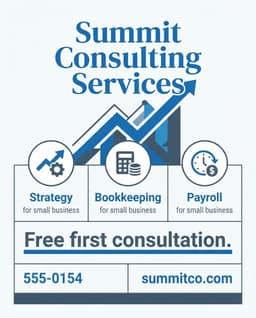
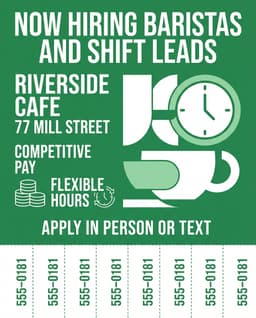
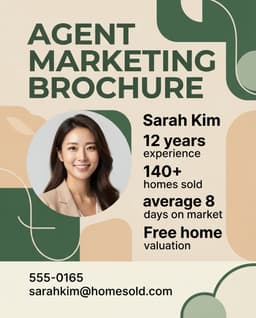
- 1Type your business details & promotional offer
- 2AI formats vector 300 DPI PDF layout
- 3Print via AirPrint or download PDF for $3.99